Badge printing and manual printing
Badges printed automatically
Attendees show their QR code and the badge comes out of the printer, with a color-coded result and the print history. For anyone without a QR code, there is manual printing.
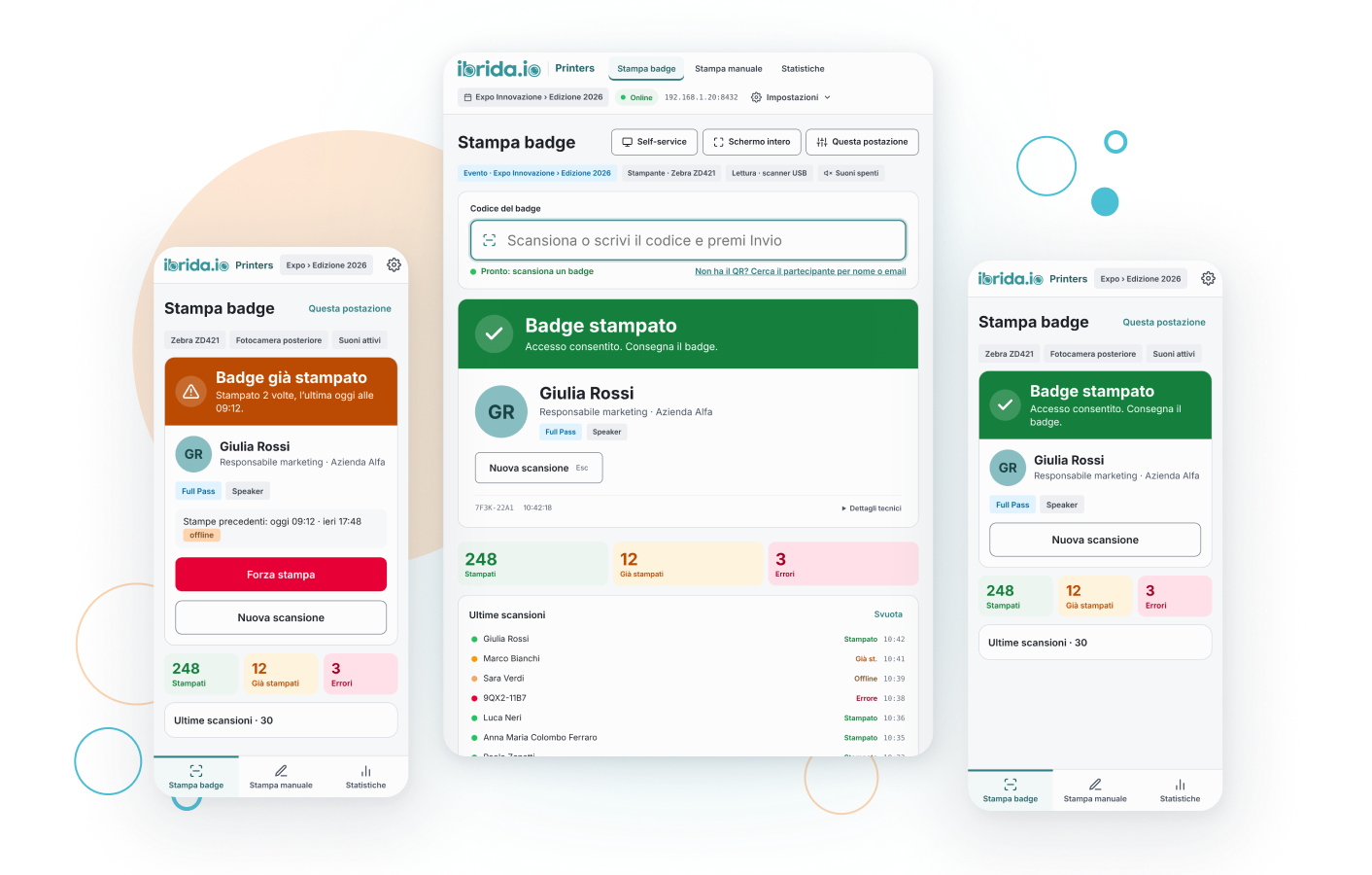

Attendees scan their QR code and the badge comes straight out of the printer. It works with the event platform’s access control and with ibrida.io Printers, the software built for printing stations.
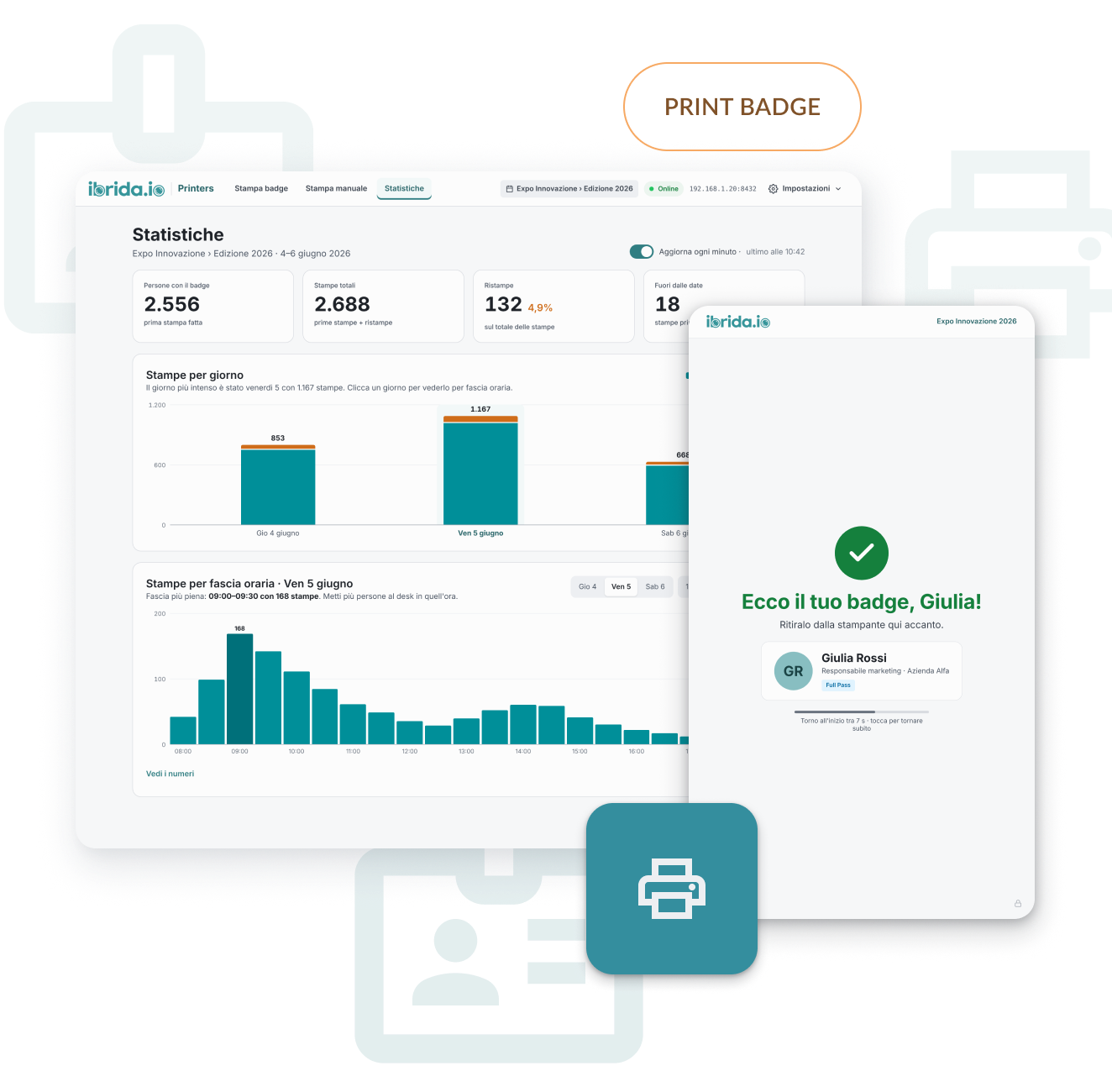
ibrida.io Printers is the software that manages badge printing at your event. You use it from a computer, tablet or phone, and it is organized into four sections.
Badge printing and manual printing
Attendees show their QR code and the badge comes out of the printer, with a color-coded result and the print history. For anyone without a QR code, there is manual printing.
Labels
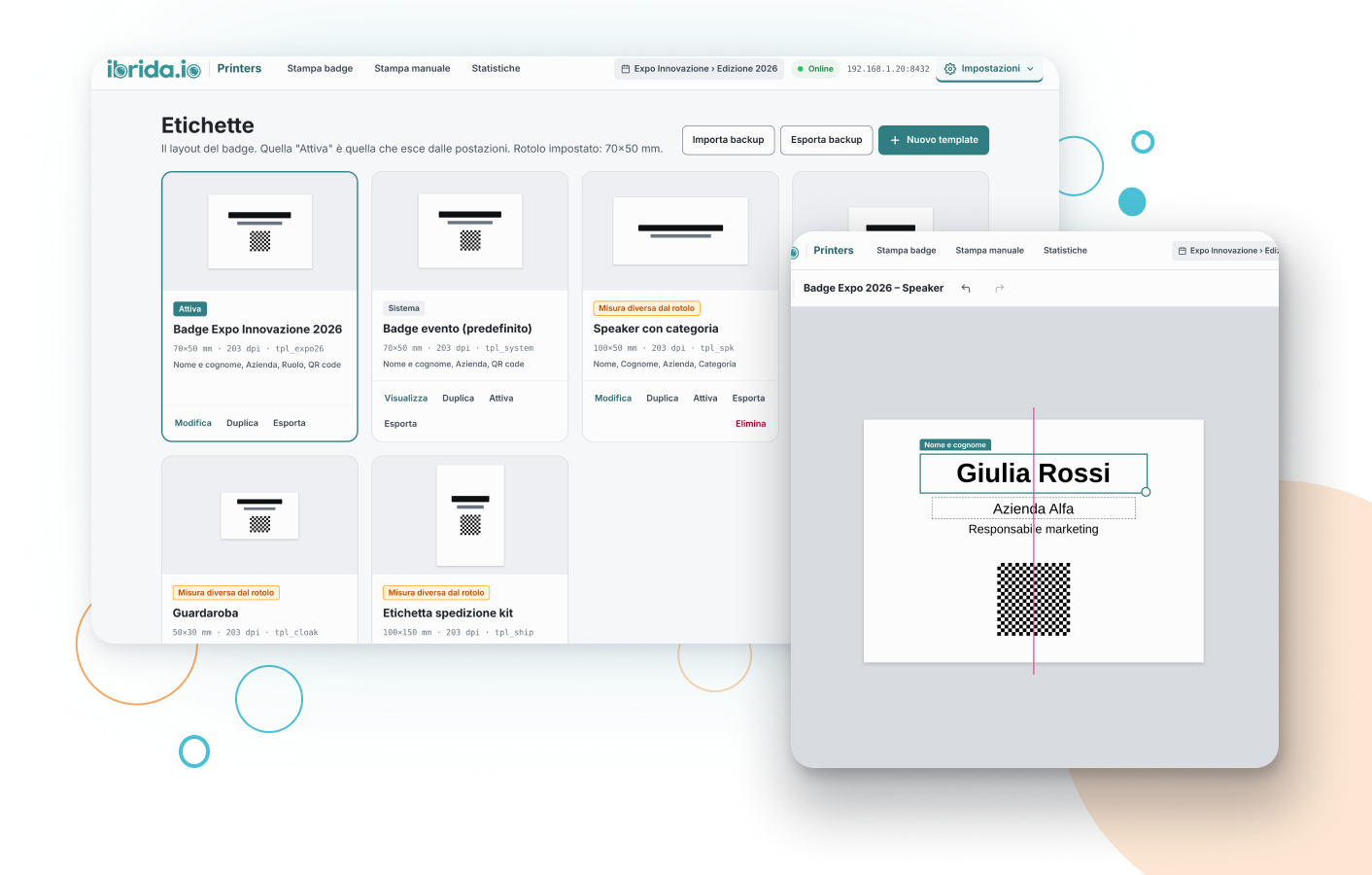
Choose what appears on the badge and prepare different templates for speakers, staff, cloakroom or kit shipping. The active template is the one the stations print.
Statistics
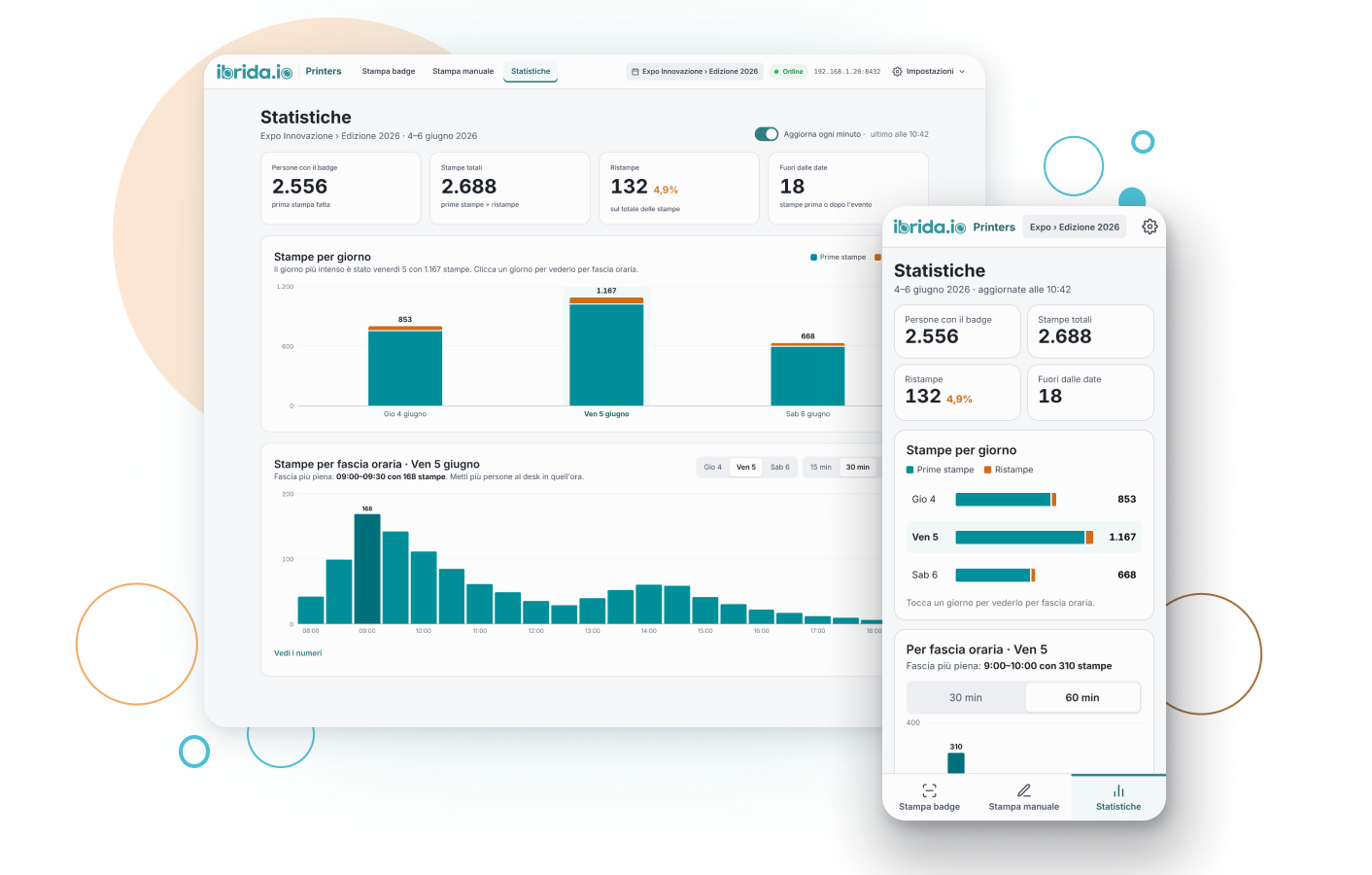
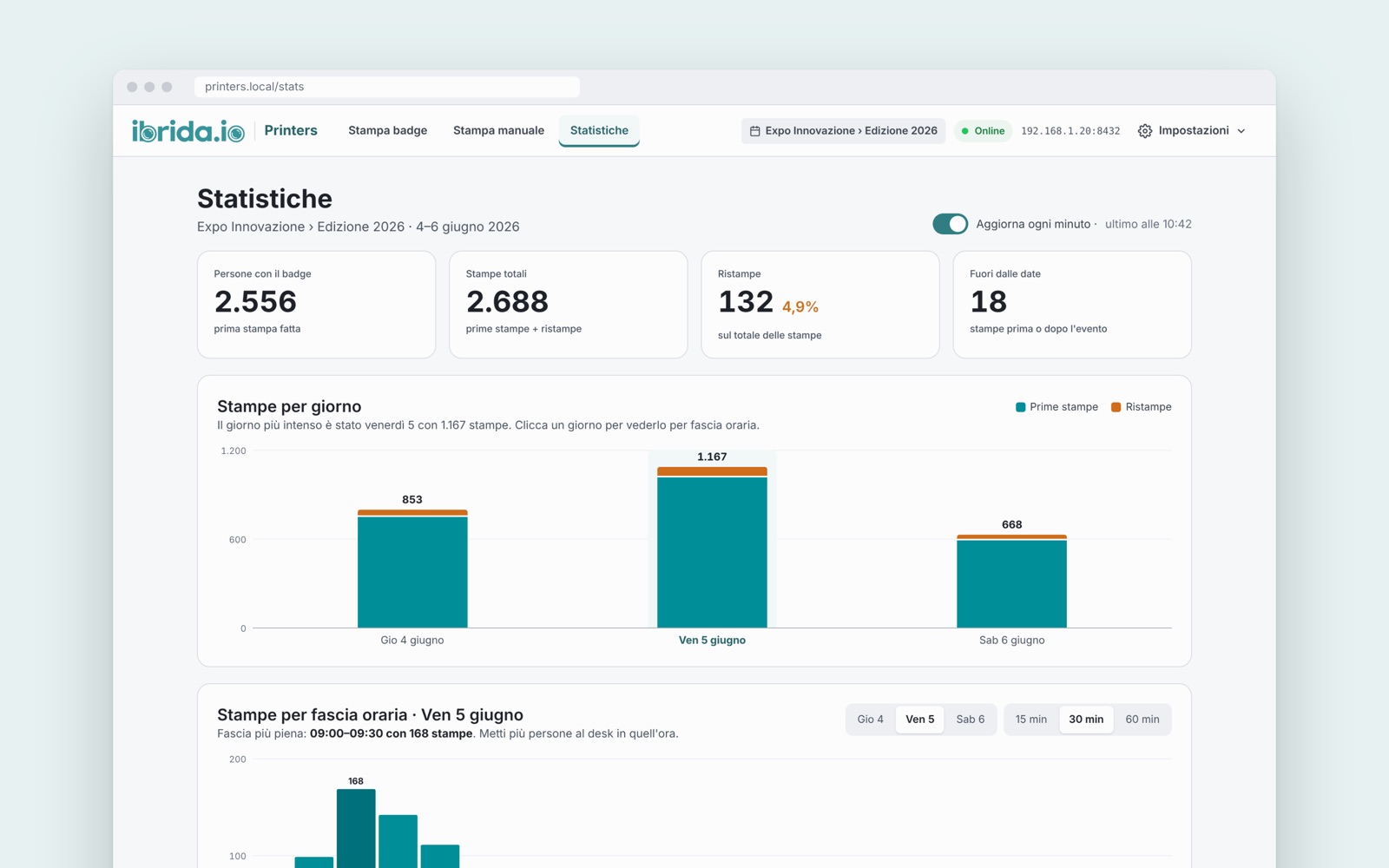
How many people have picked up their badge, how many prints and reprints, day by day and by time slot, updated every minute.
Settings
From the Settings menu you choose the event, the printer and the roll, activate the label, update the offline data and configure the certificate to use the camera from other devices.
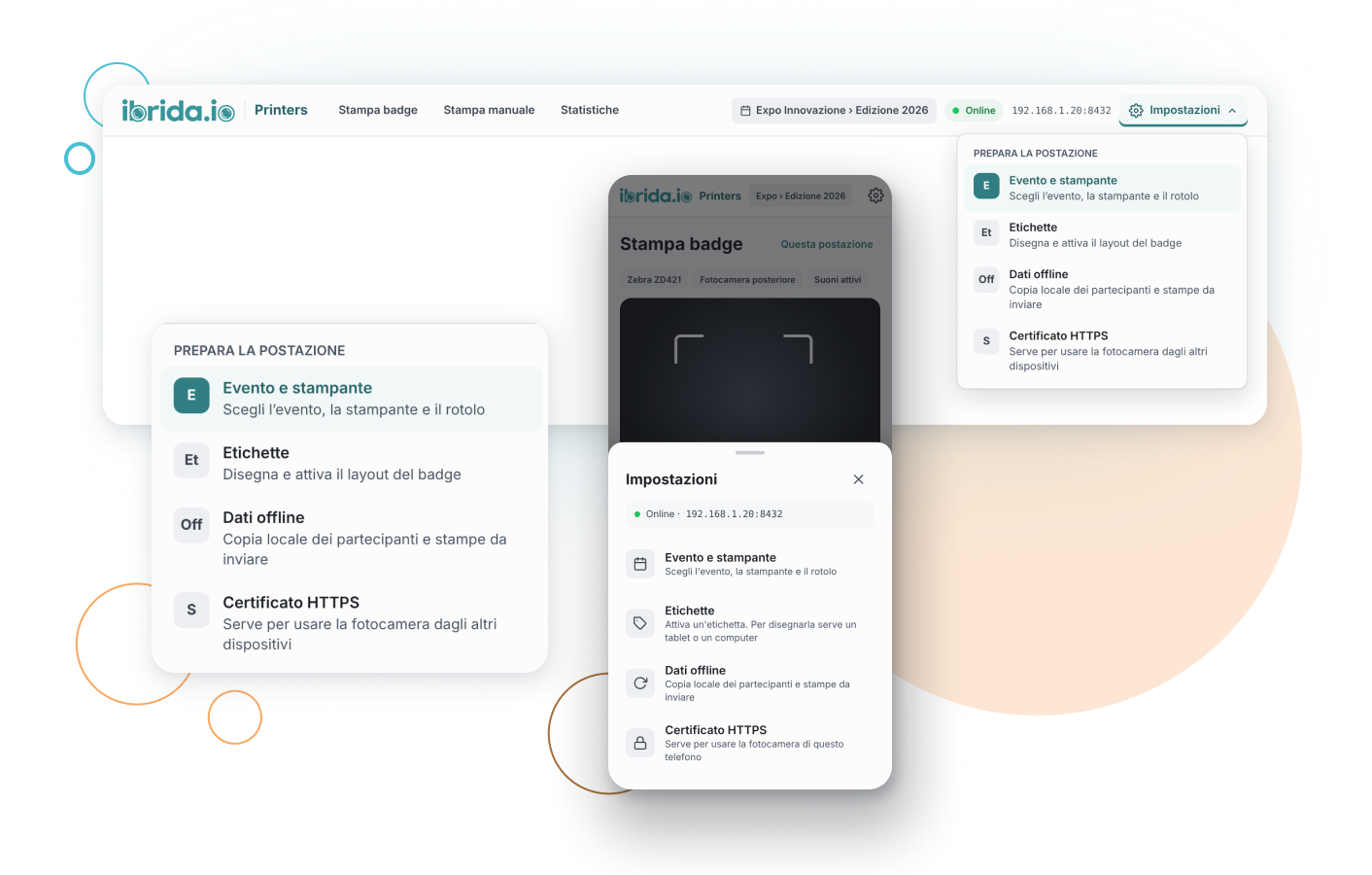
Badge printing is part of the event platform’s access control, but it also has its own software: ibrida.io Printers. It runs on the computer connected to the printer, and you use it from a computer, tablet or phone, with settings designed for your event.
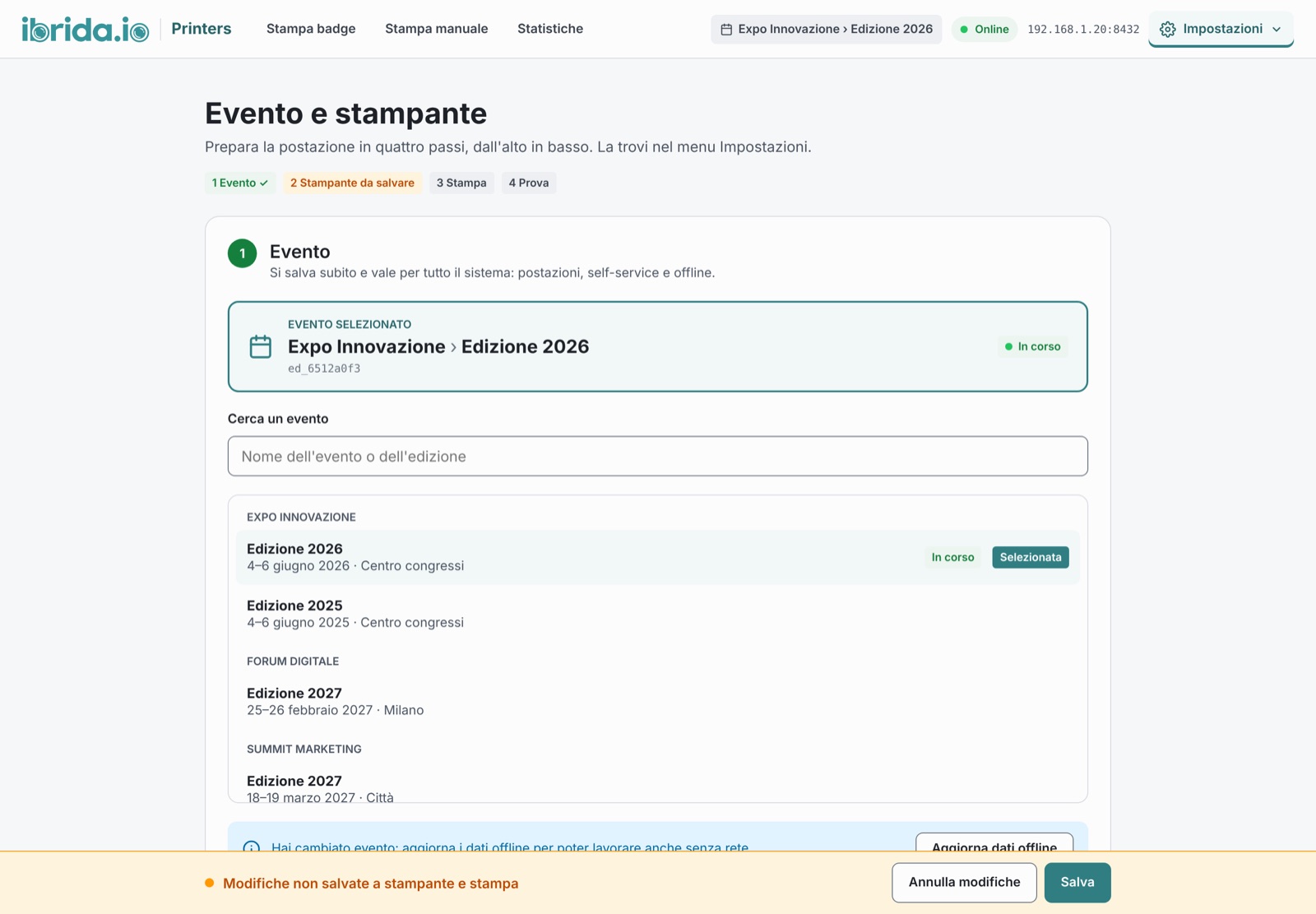
First, choose the event and the edition from a list: your choice applies to all stations, to self-service and to offline mode.
Then you select the printer, set the print format and run a test print. The station guides you through four steps, from top to bottom, and warns you if any changes are still unsaved.
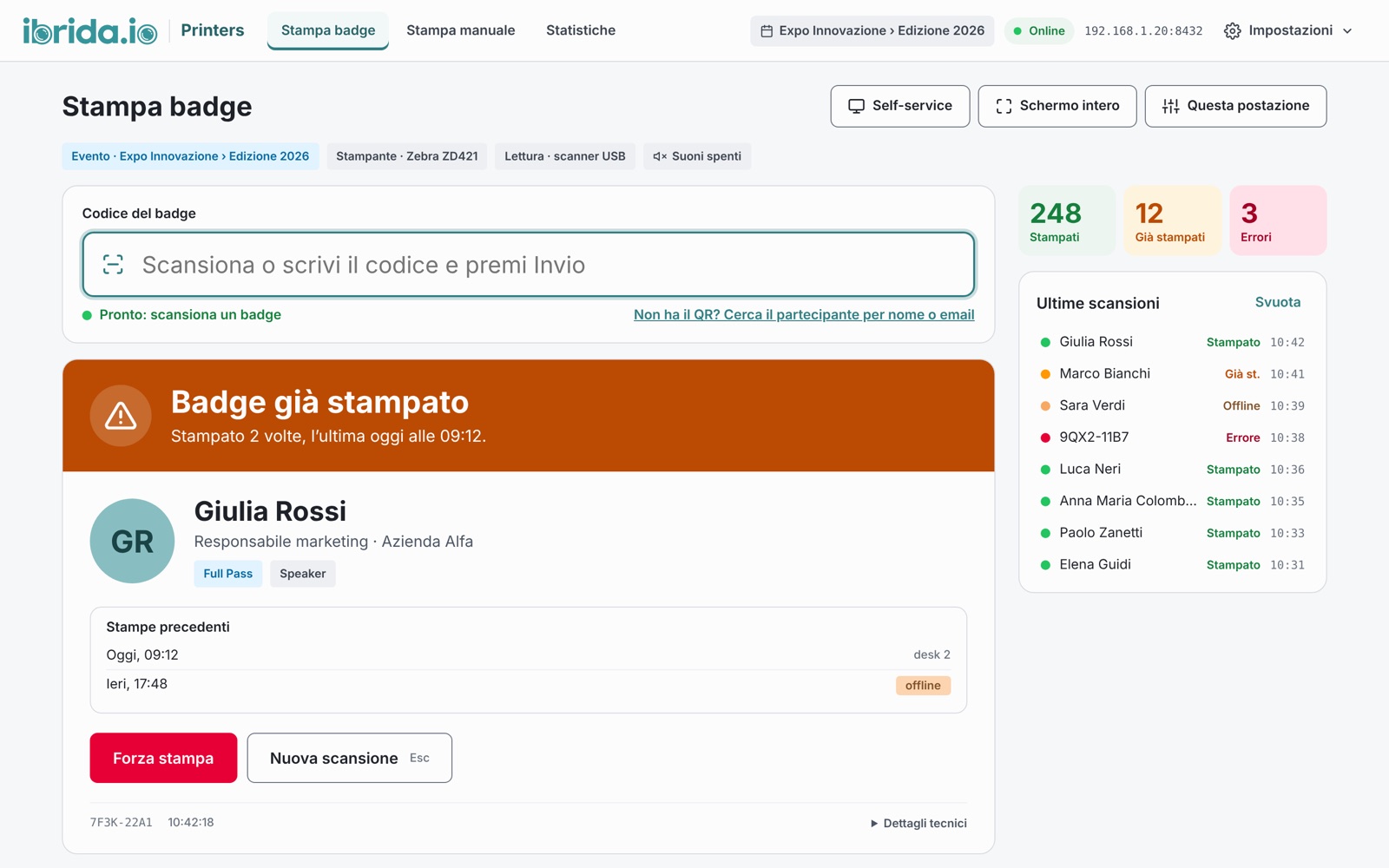
The badge is read with a USB scanner, with the camera of a tablet or phone, or by searching for the attendee by name or email if they don’t have their QR code with them.
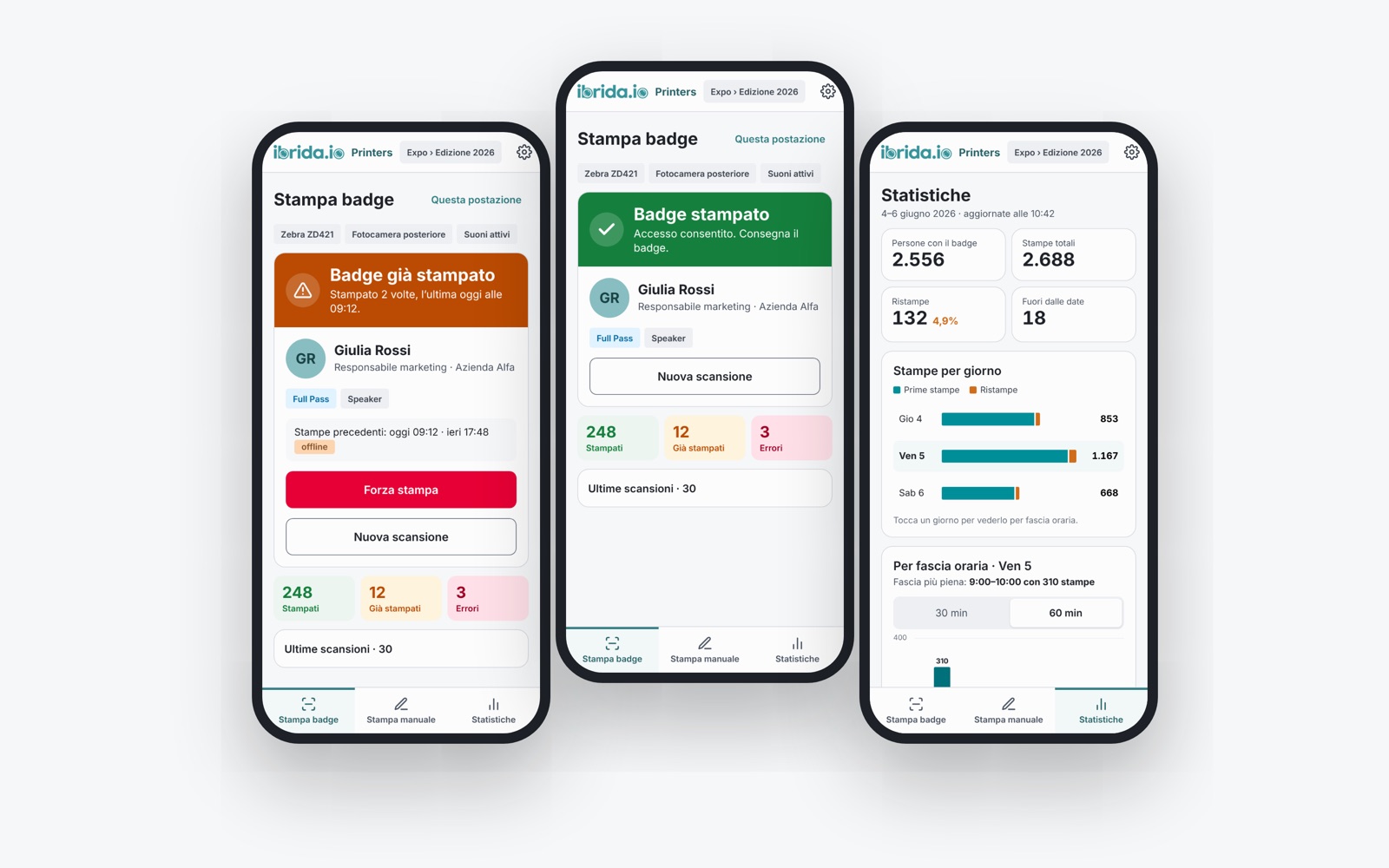
The result is clear at a glance: green if the badge has been printed, orange if it was already printed, red if there is a problem. With name, role and print history in front of them, staff can decide in a moment whether to reprint it.
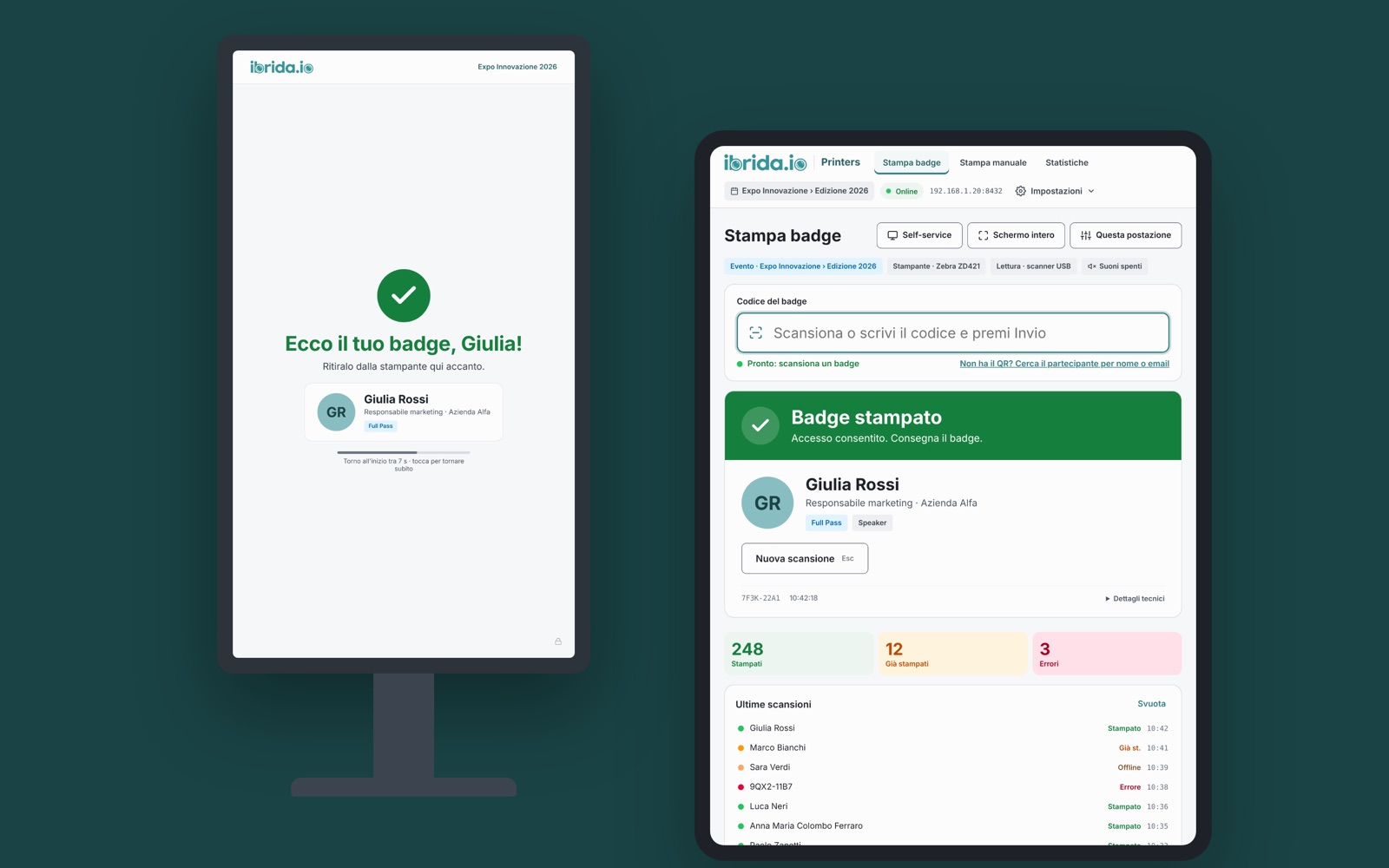
Turn a station into a kiosk: a tablet or screen next to the printer, locked to a single screen, where attendees scan the QR code on their ticket and pick up their badge on their own, without going to the desk.
Exiting the kiosk requires the staff PIN or an unlock QR code. And with hostess mode, you decide whether desk staff can reprint a badge without being asked for the PIN.
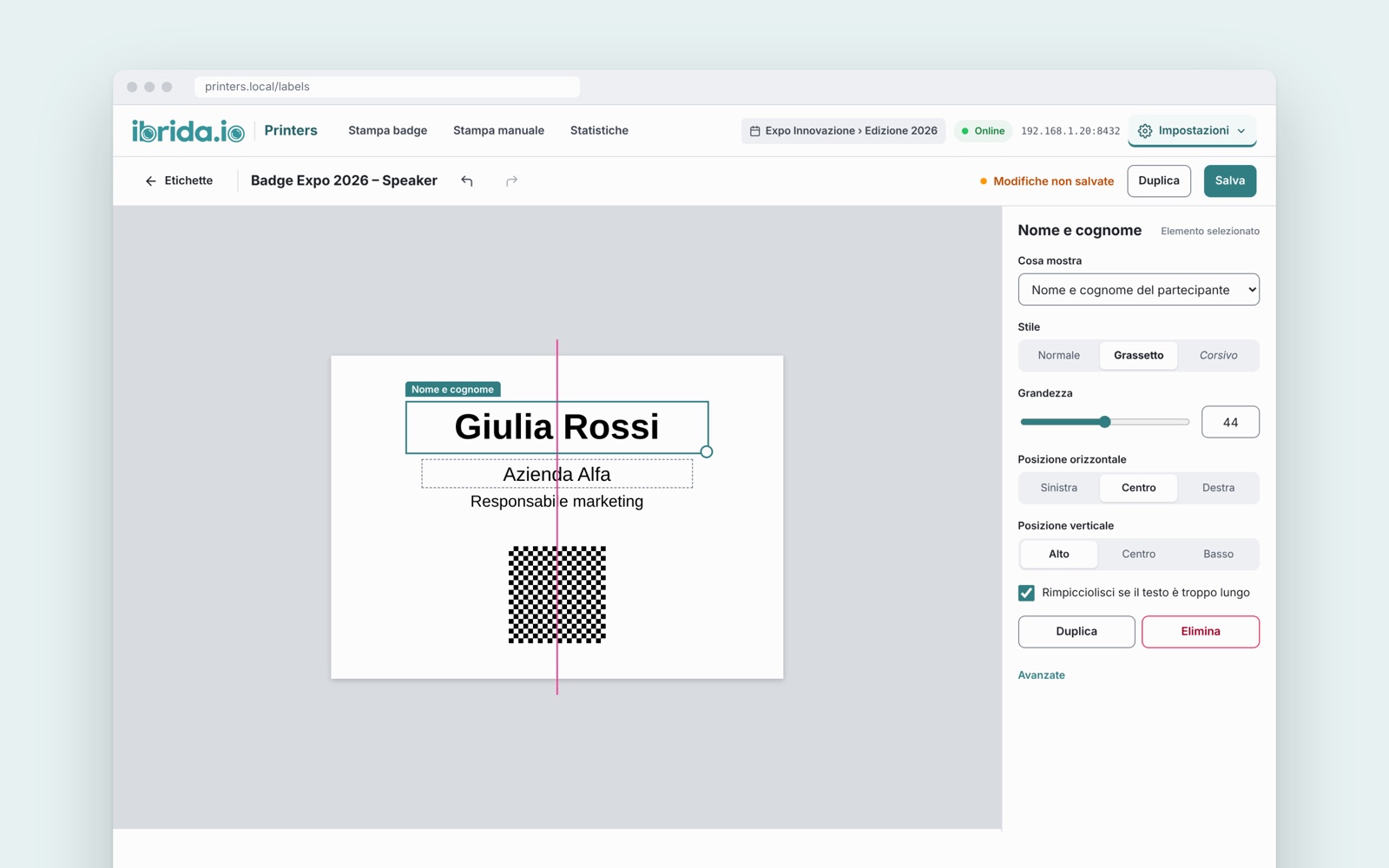
With the visual editor you choose what appears on the badge (name, company, role, category, QR code) and arrange it the way you like, with quick centering and an accurate preview.
You prepare different templates for speakers, staff, cloakroom or kit shipping and choose the active one. If the size doesn’t match the roll in the printer, we flag it before you waste labels, and every template is saved as a backup.
How many people have picked up their badge, how many prints and reprints, day by day and by time slot, updated every minute.
You can see the peak hour right away and know when to put more people on the desk: during the event and at the next edition.
Any station can be a tablet or a smartphone: the mobile version has the three main actions (badge printing, manual printing and statistics) and the settings always at hand.
The device camera reads the QR code securely: you just authorize the station once, following the step-by-step guide for iPhone, iPad, Android, Mac and Windows.
The details that make the difference when there’s a line at the entrance.
A copy of the attendee list stays on the station: if the connection drops, printing continues, and prints are sent as soon as the network is back.
Have your attendee list in a CSV file? Upload it, the columns are matched automatically and the badges are printed in a batch. If something is interrupted, you pick up where you left off.
Choose the event and the edition from a list just once: your choice applies to all stations, to self-service and to offline mode.
Event, printer, print format and test print: you set up the station from top to bottom, without skipping anything. On Windows there is also a guide for connecting the USB printer.
If the printer isn’t ready or something is missing from the configuration, the station tells you right away, before a line forms.
With the USB scanner you move straight on to the next badge, sounds confirm every print and a single key clears the screen. With the camera, the station automatically goes back to scanning.
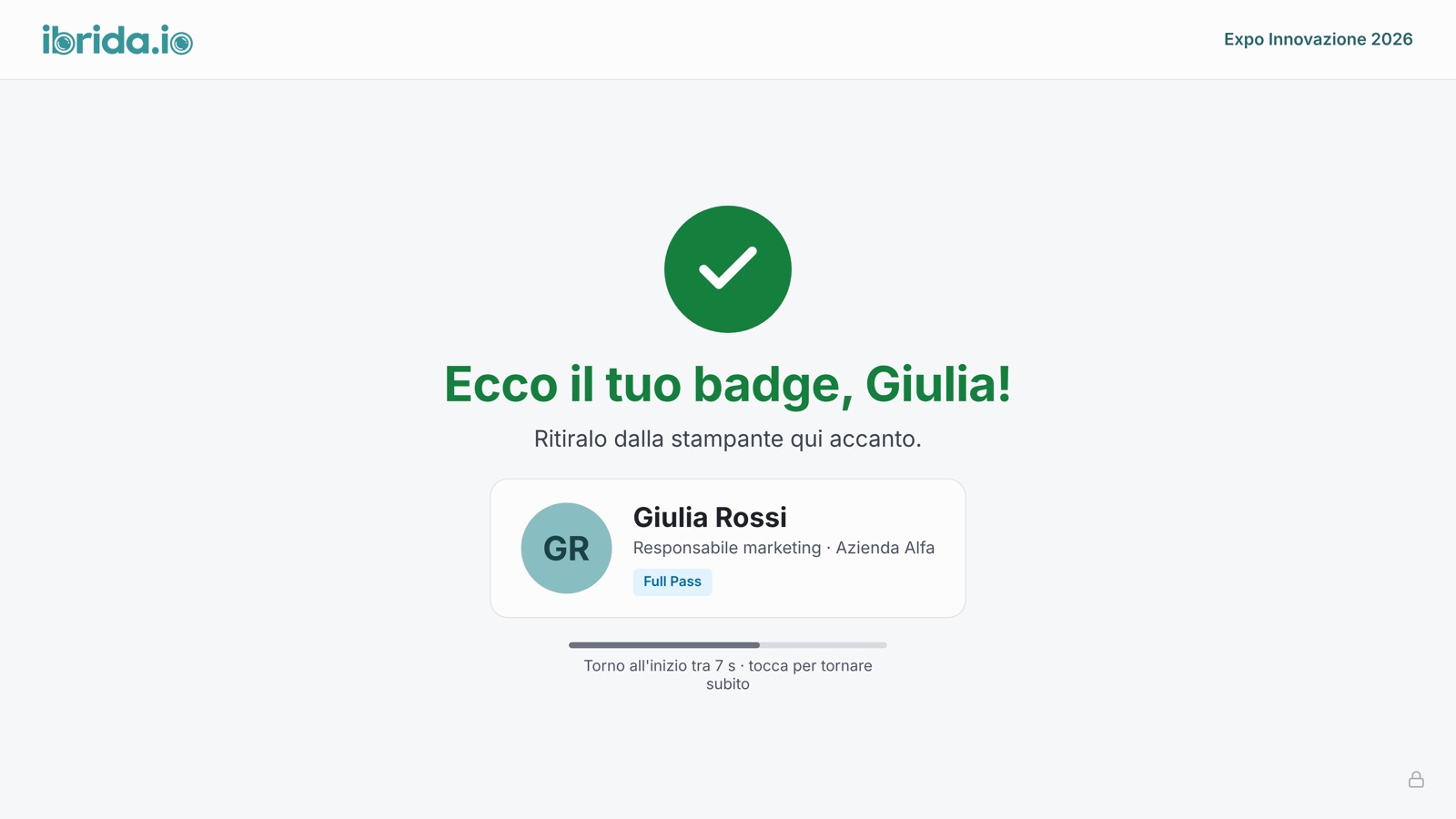
In kiosk mode the station shows only the attendee screen: in portrait on a kiosk stand or in landscape on a tablet, next to the printer. Your staff stay free to welcome people and handle special cases.
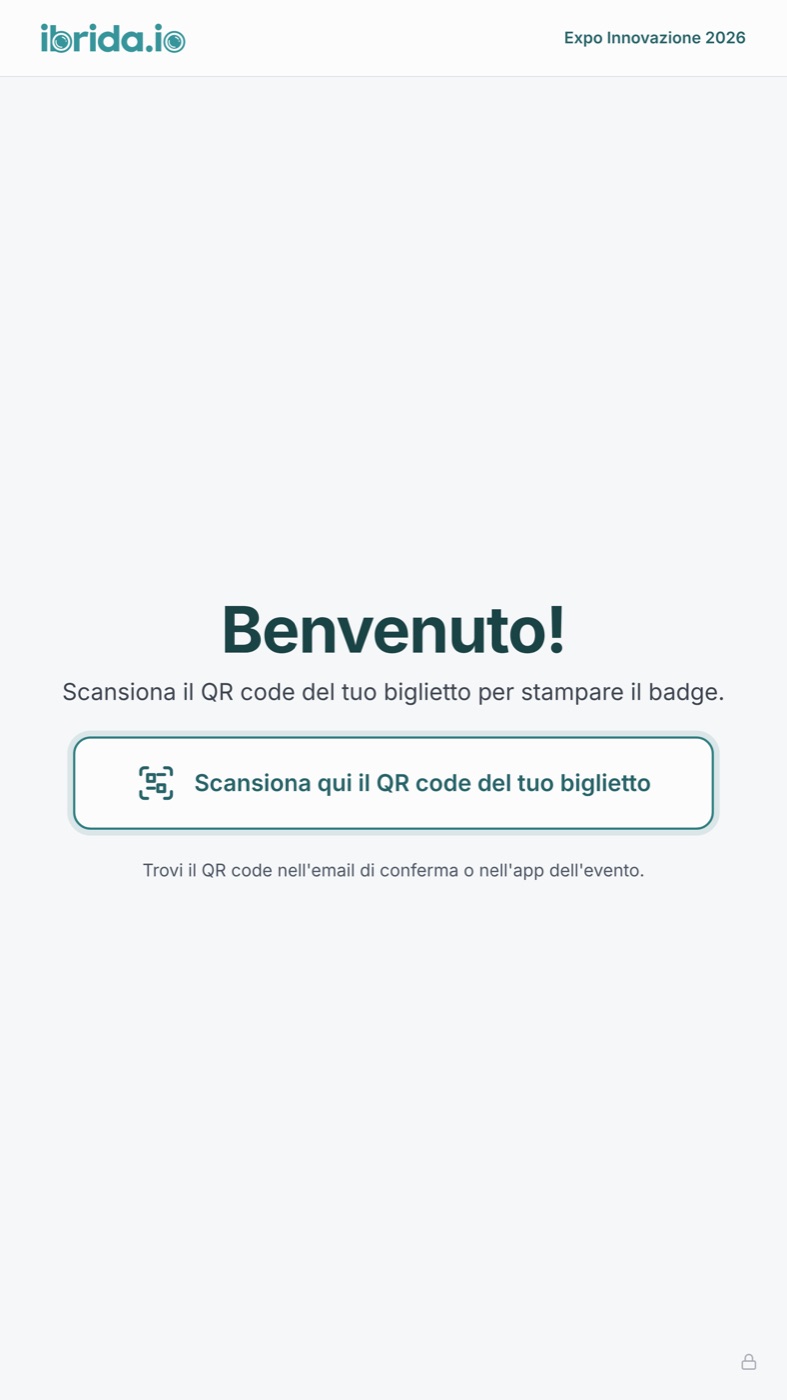
The kiosk prompts attendees to scan the QR code on their ticket, which they find in the confirmation email or in the event app.
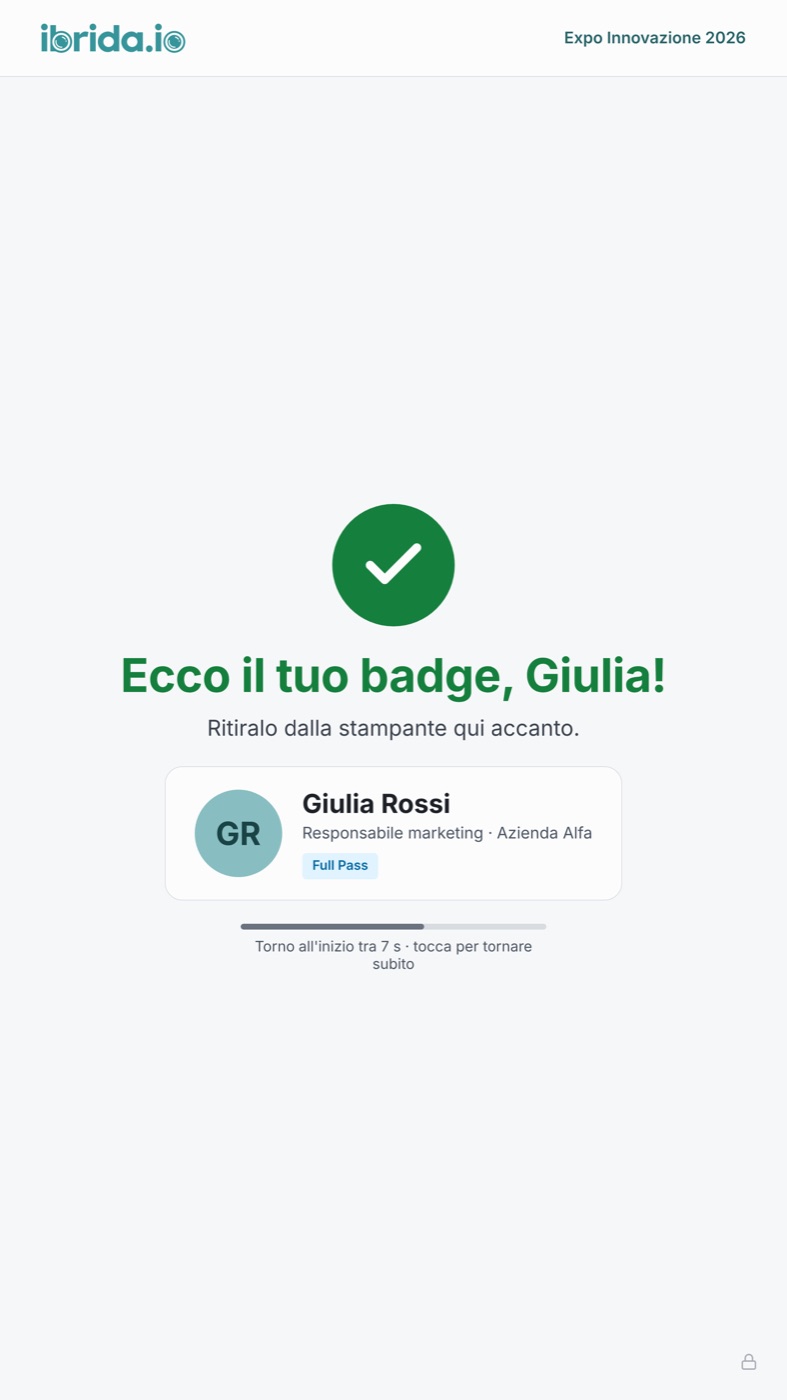
The screen greets the attendee by name and tells them to pick up their badge from the printer. After a few seconds it returns to the start, ready for the next person.
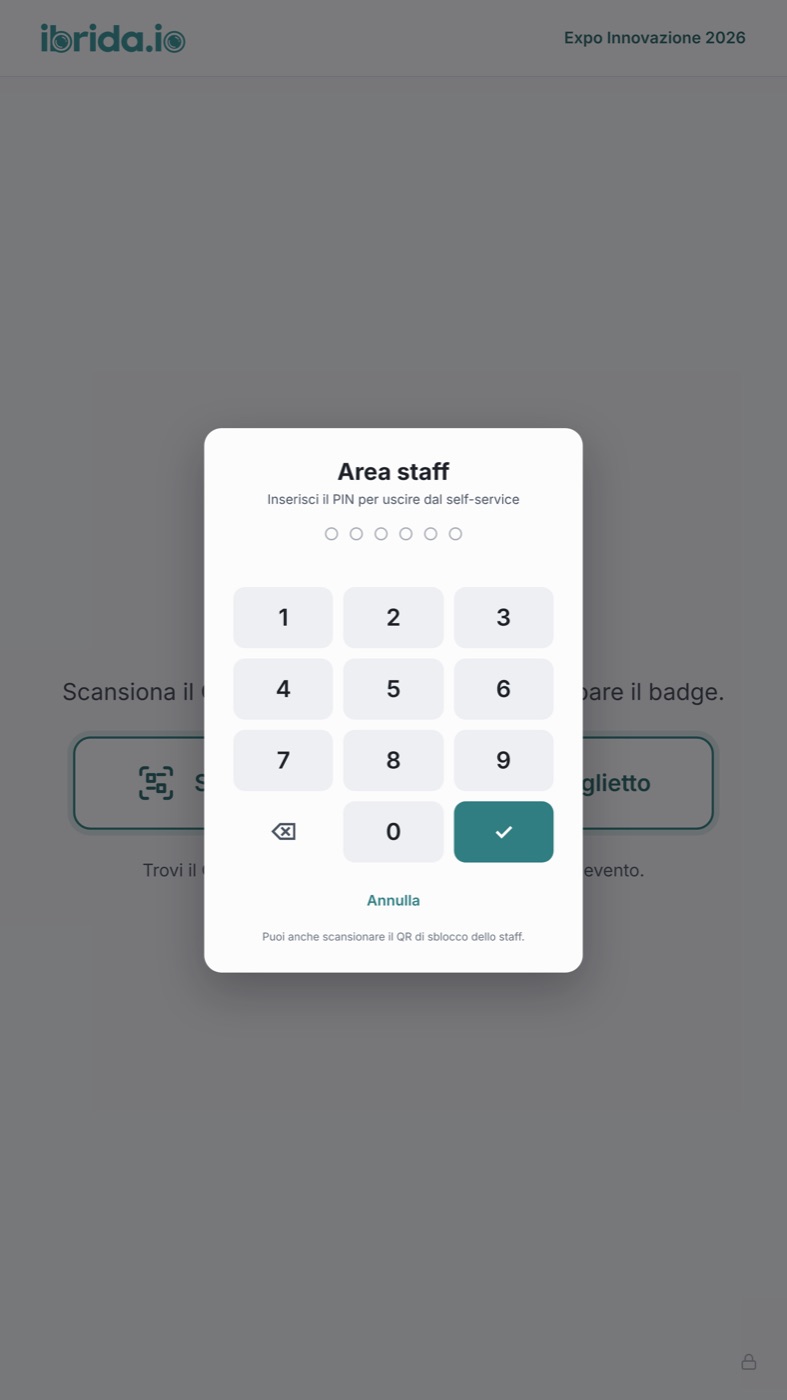
Only staff can exit the kiosk, with the PIN or the unlock QR code: attendees cannot change the station settings.
Fast entry and a badge that is actually useful.
One scan and the badge is ready: no lines, no lost passes or passes to reprint by hand.
It works with the access and registered-user management system, with no separate systems to sync.
The QR code on the badge lets attendees instantly save the contact details of the people they meet.
Labels, self-service and the settings of each station adapt to your event, even when there is no network.
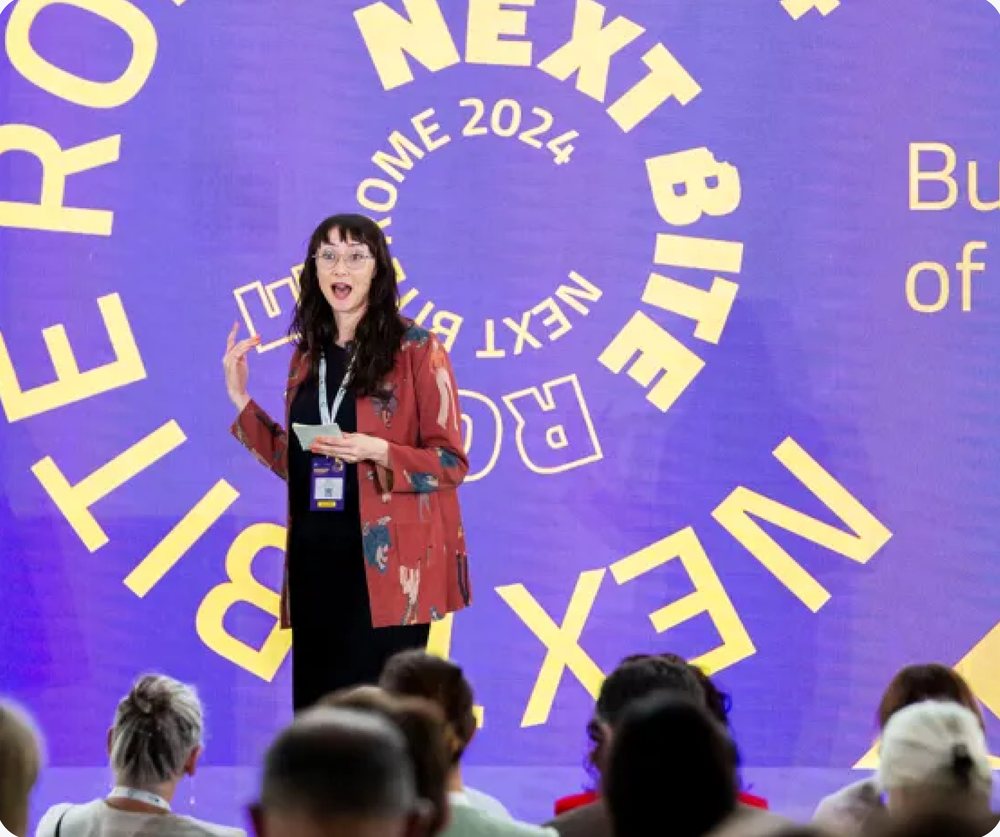
NEXT BITE · 2024 EDITION
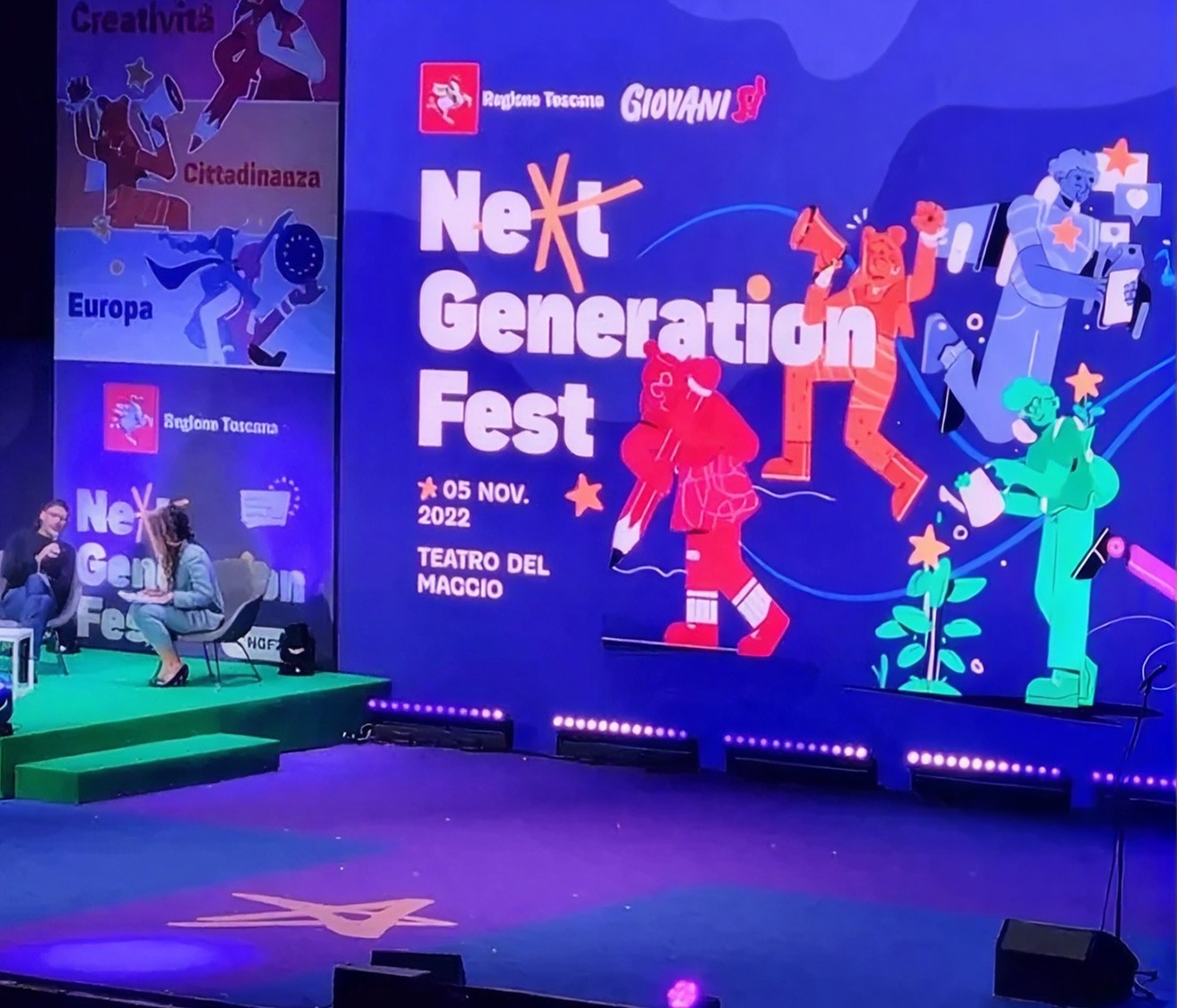
NEXT GENERATION FEST

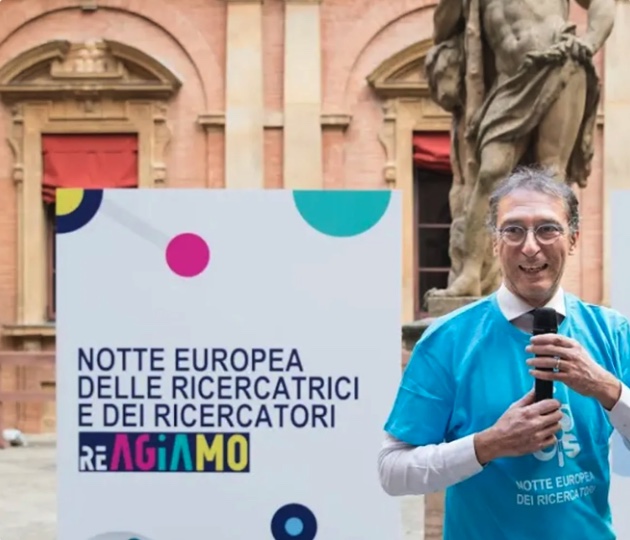
EUROPEAN RESEARCHERS’ NIGHT
Beyond promotion and marketing, explore the other ibrida.io products for managing your event.
A digital hub for your community: AI Matchmaking, B2B meetings, live streaming and spaces for sponsors and exhibitors.
Learn moreRegistrations, tickets and accreditations in a single flow, from the registration form to check-in.
Learn moreTell us about your event idea. Our experts will get back to you within 24 business hours with tailored suggestions, demo details or strategic advice.
Already organizing an event, or need immediate help with the platform?
Talk to an expert